
Guide to Creating a Cookie Consent Banner That Complies with PDPA
Guide to Creating a Cookie Consent Banner That Complies with PDPA
To ensure your Cookie Consent Banner fully complies with PDPA, we recommend setting up and managing your banner correctly in just a few simple steps. You can manage everything yourself via the Cookie Wow dashboard:
STEP 1: Create a Project
Start by adding your website domain to the system. You can install the cookie banner on various platforms, including direct HTML sites or website builders like WordPress.
Tip: Cookie Wow works great with Cloudflare Rocket Loader and Google Tag Manager too!
STEP 2: Automatically Detect Cookies via Cookie Scanner
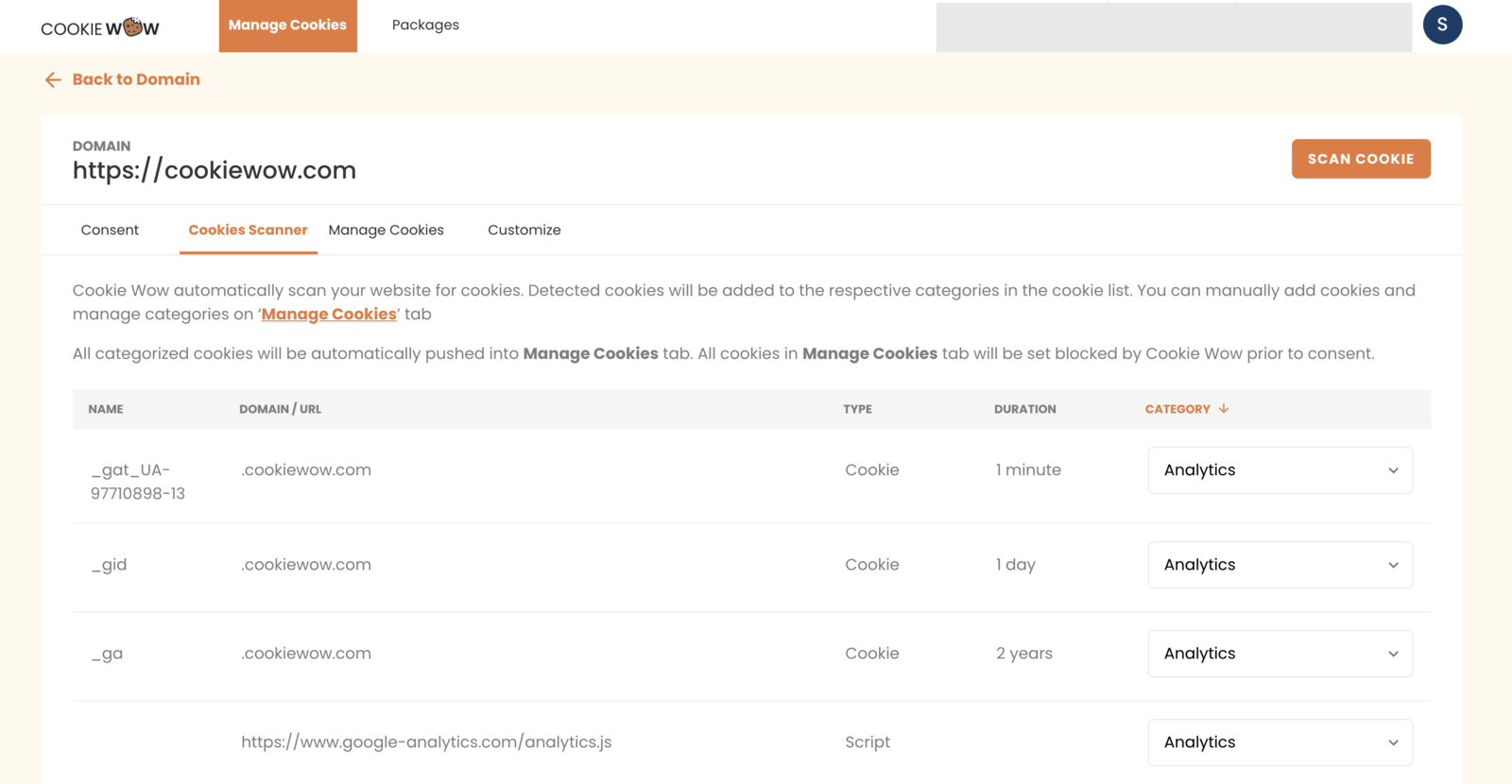
Once the domain is added, go to the Cookie Scanner tab. The system will automatically scan your website to detect cookies and scripts. You’ll see a list of all detected items in this section.
STEP 3: Manage Cookie Categories & Details
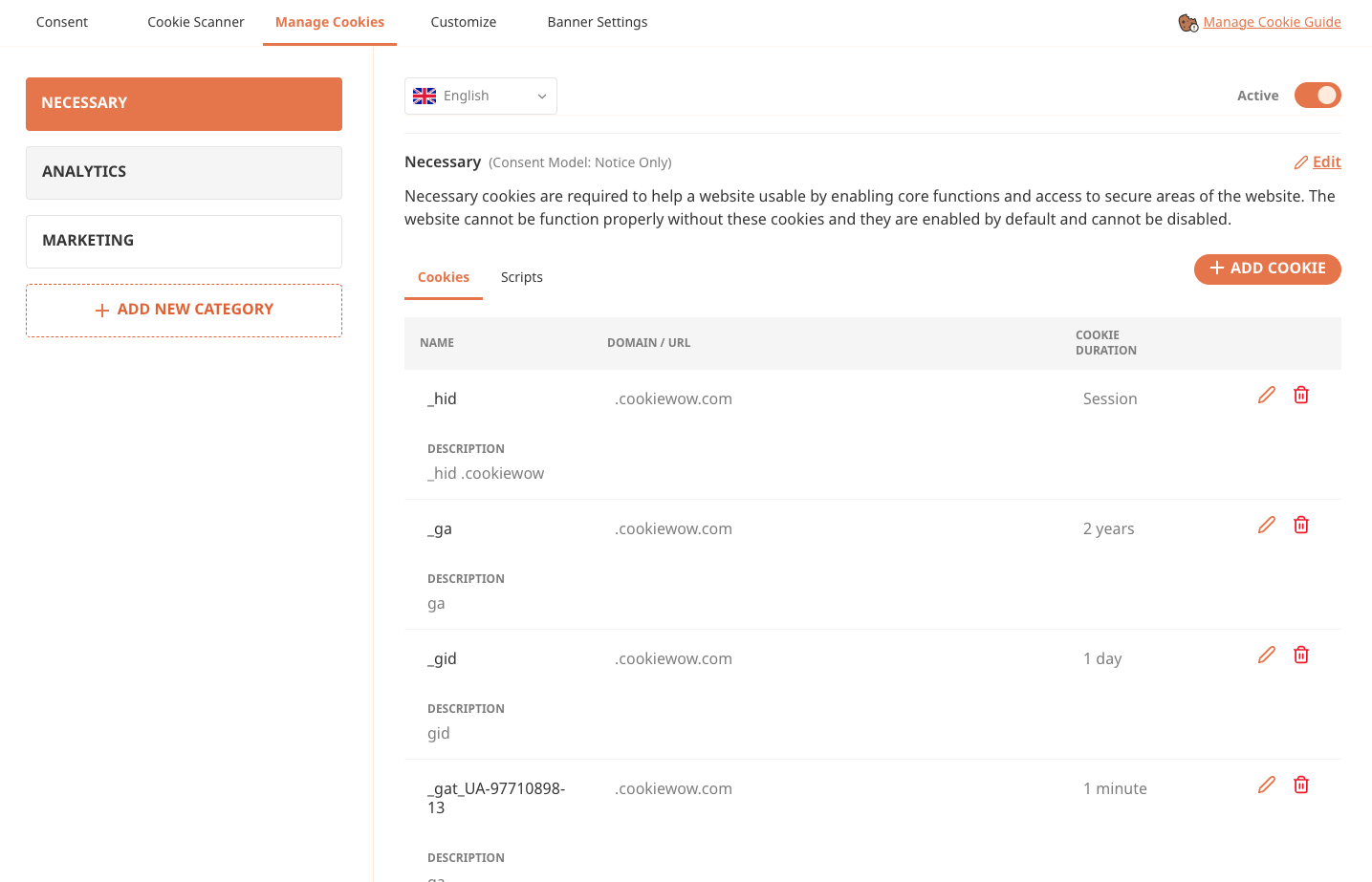
After scanning, the cookies will automatically be categorized and listed in the Manage Cookies section. You’ll be able to add descriptions or create new categories manually if necessary.
You can also adjust the consent model (Opt-in, Opt-out, or Notice Only) based on the sensitivity and usage of cookies. For instance, Analytics and Marketing cookies will be blocked by default until the user provides consent.
Tip: To maintain analytics accuracy without fully identifying the user, you can enable IP Anonymization for Google Analytics.
STEP 4: Customize the Banner Design
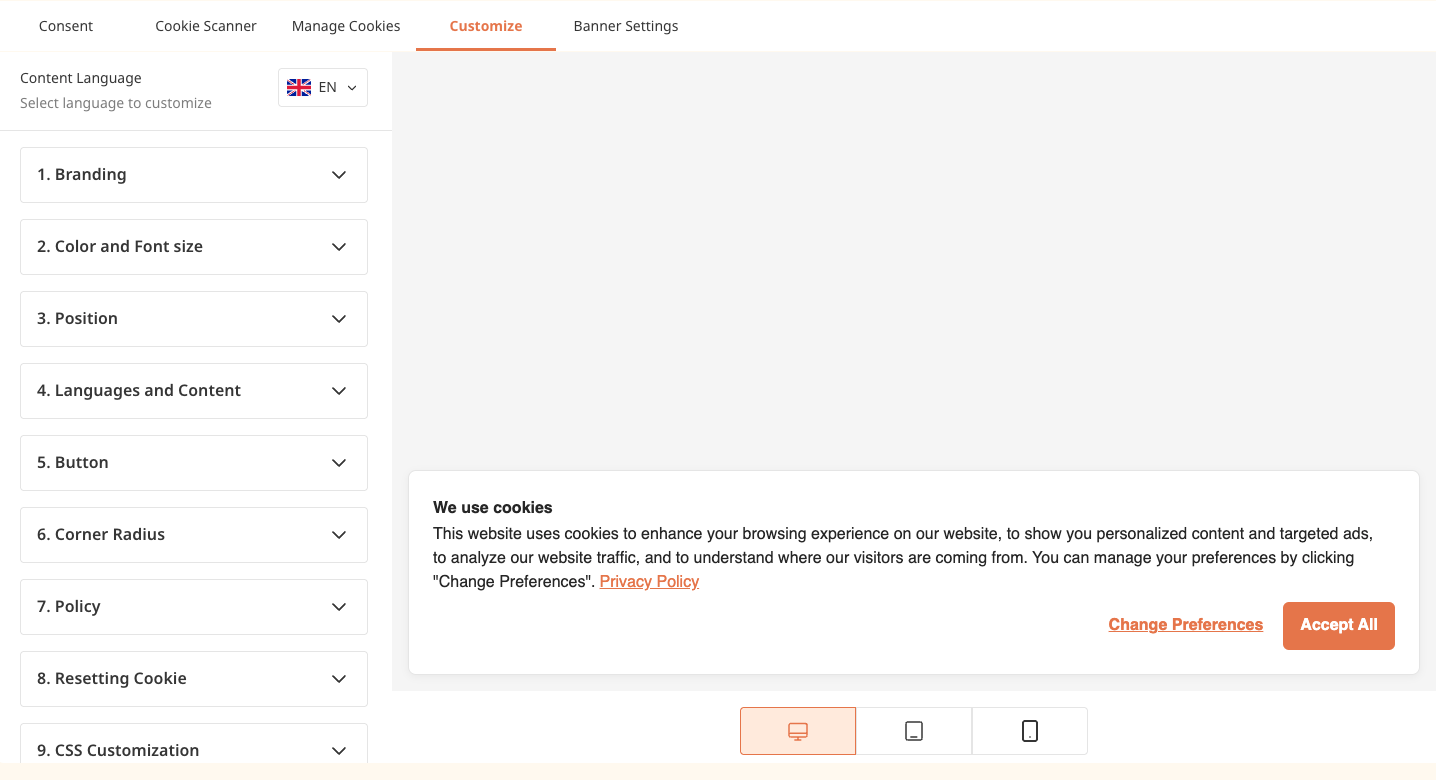
You can visually customize your cookie banner using Cookie Wow’s design editor. It supports up to 4 languages (Thai, English, Chinese, Japanese), and allows you to change Font color & size, position , border radius, and messaging, brand logo.
Tip: For advanced styling, you can apply custom CSS.
STEP 5: Publish Your Banner
Once everything is set, click “Publish Banner” to apply the latest version of your cookie banner to your website. It usually takes about 5–10 minutes to reflect the changes. Each version will track: Banner text, Design settings, Cookie categories and tag configurations, and Consent settings.
Related articles
See allWhy Consent Logging Matters
Why Consent Logging MattersRecording user consent serves as legal evidence that helps you — the data controller — demonstrate compliance ...
Steps for Categorizing Cookies
Steps for Categorizing CookiesWebsite Scan for CookiesAfter adding your website domain, Cookie Wow will automatically scan your website. ...
New User Permission: “Billing Manager” for Enhanced Financial Management
New User Permission: “Billing Manager” for Enhanced Financial ManagementTo provide greater flexibility and security in managing your orga...
Need more help?
Get in touch and we'll help solve it