
Common Issues When Installing Cookie Wow via the WordPress Plugin
Common Issues When Installing Cookie Wow via the WordPress Plugin
1. Conflict with the WP Rocket Plugin
WP Rocket includes a feature that automatically combines JavaScript files. This can cause the Cookie Wow JavaScript file to malfunction because proper installation requires placing the Cookie Wow script at the very top, above all other script tags, in order to block other cookies and scripts effectively.
How to Fix It:
Go to:
WP Rocket Settings → File Optimization → JavaScript Files
Then, exclude the Cookie Wow script URL in the "Combine JavaScript Files" and "Load JavaScript Deferred" sections as follows:
For Cookie Wow plugin version 1.1.0 and above:
cookiecdn.com/(.*)For versions below 1.1.0:
script.cookiewow.com/(.*)
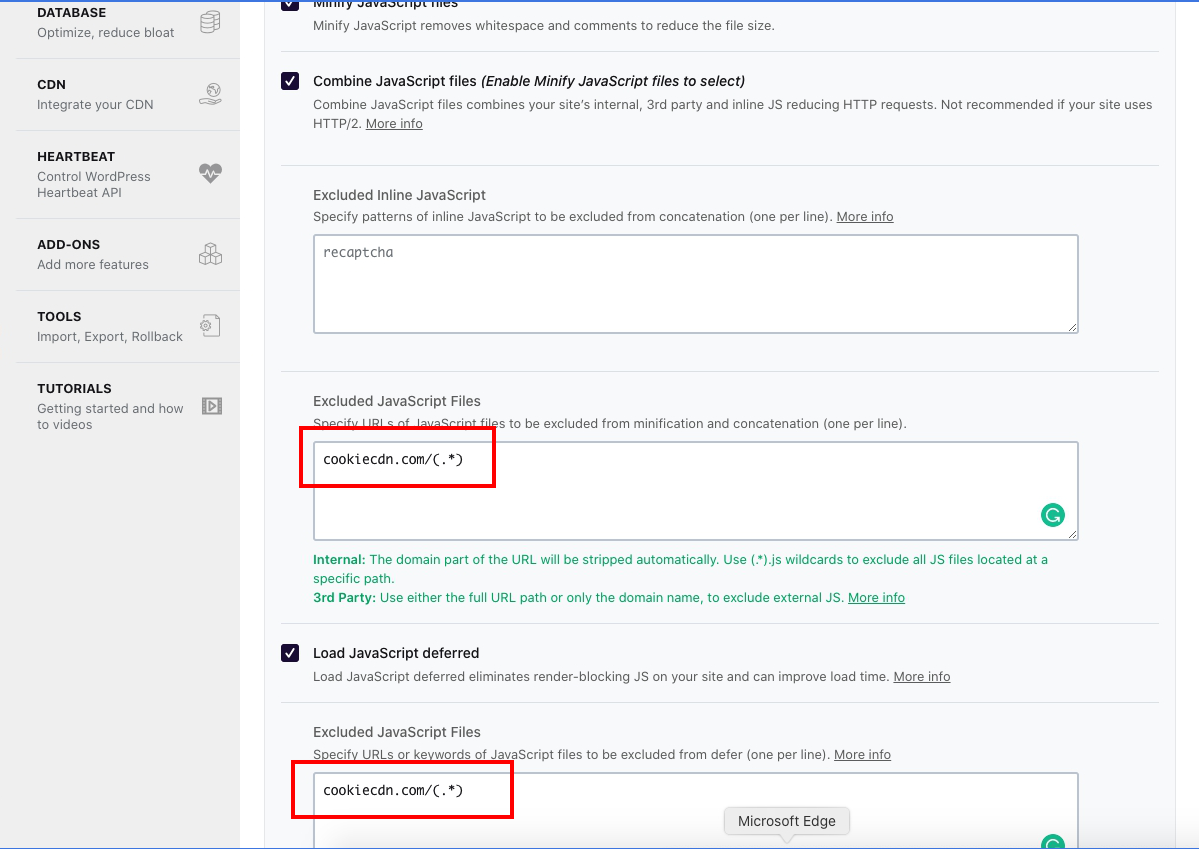
If those sections do not appear in your WordPress dashboard, update your WP Rocket plugin to the latest version.
2. Website Page Caching Issues
In some cases, the website caches an outdated version of the Cookie Wow script, especially after updates or corrections have been made. This can result in the cookie banner not displaying properly due to old cache data.
How to Fix It:
Clear your website cache. Some caching might be managed by WordPress plugins like WP Rocket or others.
If your website uses Cloudflare for page caching, go to the Caching → Configuration → Purge Cache section on the Cloudflare dashboard and clear the cache there as well.
Related articles
See allHow to add script to Shopify
1. Add Script to All Pages (Theme Code)Use this method if you're embedding JS across the whole store (e.g., Google Analytics, custom even...
Managing Cookies or Scripts Added via Google Tag Manager (GTM)
Managing Cookies or Scripts via Google Tag Manager (GTM)According to PDPA regulations, if your website uses third-party scripts that may ...
How to Install the Cookie Banner for Existing Users
How to Install the Cookie Banner for Existing UsersGo to the dashboard at https://app.cookiewow.com/projects and select the domain where ...
Need more help?
Get in touch and we'll help solve it