
Managing Cookies or Scripts Added via Google Tag Manager (GTM)
Managing Cookies or Scripts via Google Tag Manager (GTM)
According to PDPA regulations, if your website uses third-party scripts that may set cookies, you must block these scripts until the user gives their consent. Once consent is obtained, only then are you legally permitted to load third-party script tags or cookies.
Google Tag Manager (GTM) is a tool that allows you to manage third-party tags such as Google Analytics or other tracking scripts without editing your website code directly. You can control when each tag fires using conditions called triggers — for example, firing a Google Analytics tag only on “All Pageviews”.
To comply with PDPA, you can integrate GTM with Cookie Wow, which handles the consent management. Cookie Wow communicates user consent status to GTM, enabling or blocking tags accordingly.
Using Cookie Wow with Google Tag Manager
Cookie Wow sends consent information to GTM under the following events:
When a user clicks “Accept” on the cookie banner
When a user makes changes to their consent and clicks "Accept"
When a returning user revisits your website or browses to another page
When any of these occur, Cookie Wow pushes a dataLayer event called CookieWowConsentUpdated to GTM.
At the same time, a variable called CookieWowActiveConsents is sent to the data layer. Its value may look like: Analytics, Marketing. This allows you to create GTM triggers that fire only when the user has granted specific consent categories.
How to Create Variables in GTM
Go to your GTM Container and open the Variables tab
Click New under User-Defined Variables and choose Data Layer Variable from the variable types
Name it CookieWowActiveConsents and set the Data Layer Variable Name field to the same
Click Save
How to Create Triggers Based on Consent
To trigger tags only after consent is given (e.g. for Analytics), follow these steps:
Go to the Triggers tab in GTM
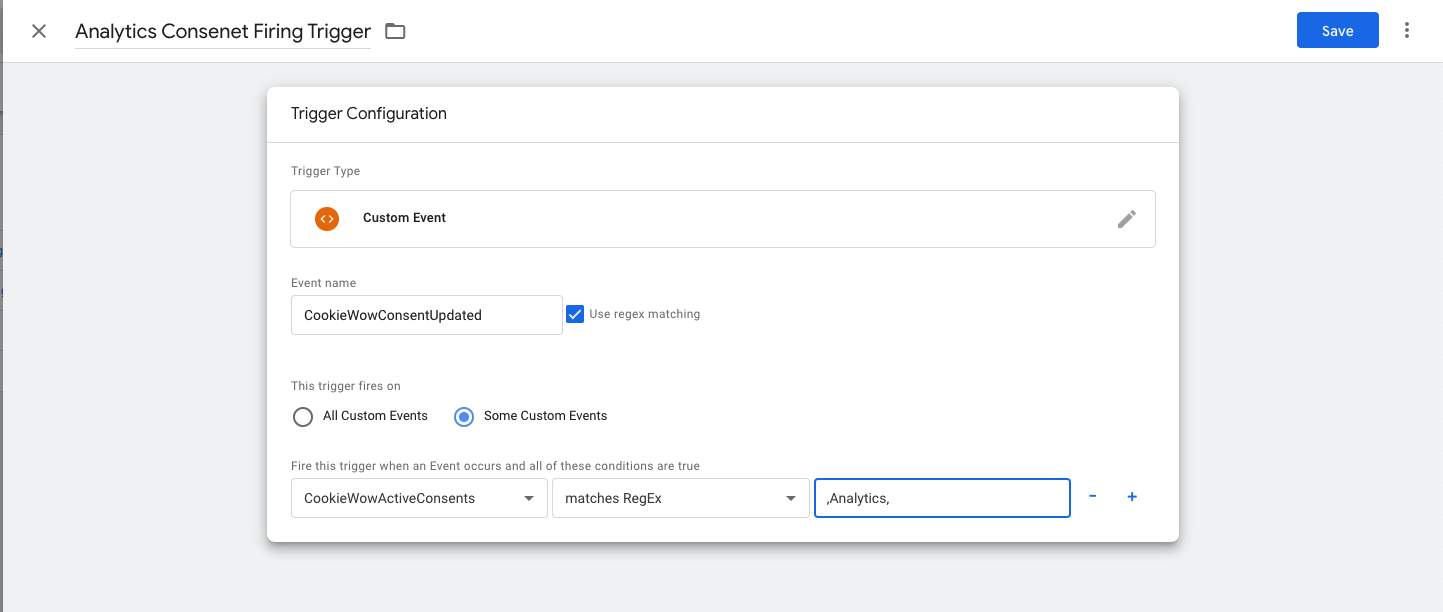
Click New Trigger Configuration and name it something like “Analytics Consent Firing Trigger”
Set the trigger type to Custom Event In Event Name, enter: CookieWowConsentUpdated then Check “Use regex matching”
Choose “Some Custom Events” and select the variable CookieWowActiveConsents then choose “matches RegEx” and use the value: ,Analytics,
Click Save
This trigger ensures that your tag will fire only after the user accepts the "Analytics" cookie category.
Importing Prebuilt GTM Container from Cookie Wow
To simplify all of the above, Cookie Wow provides a JSON file with preconfigured Variables and Triggers.
How to Import:
Download the file: CookieWow GTM Container
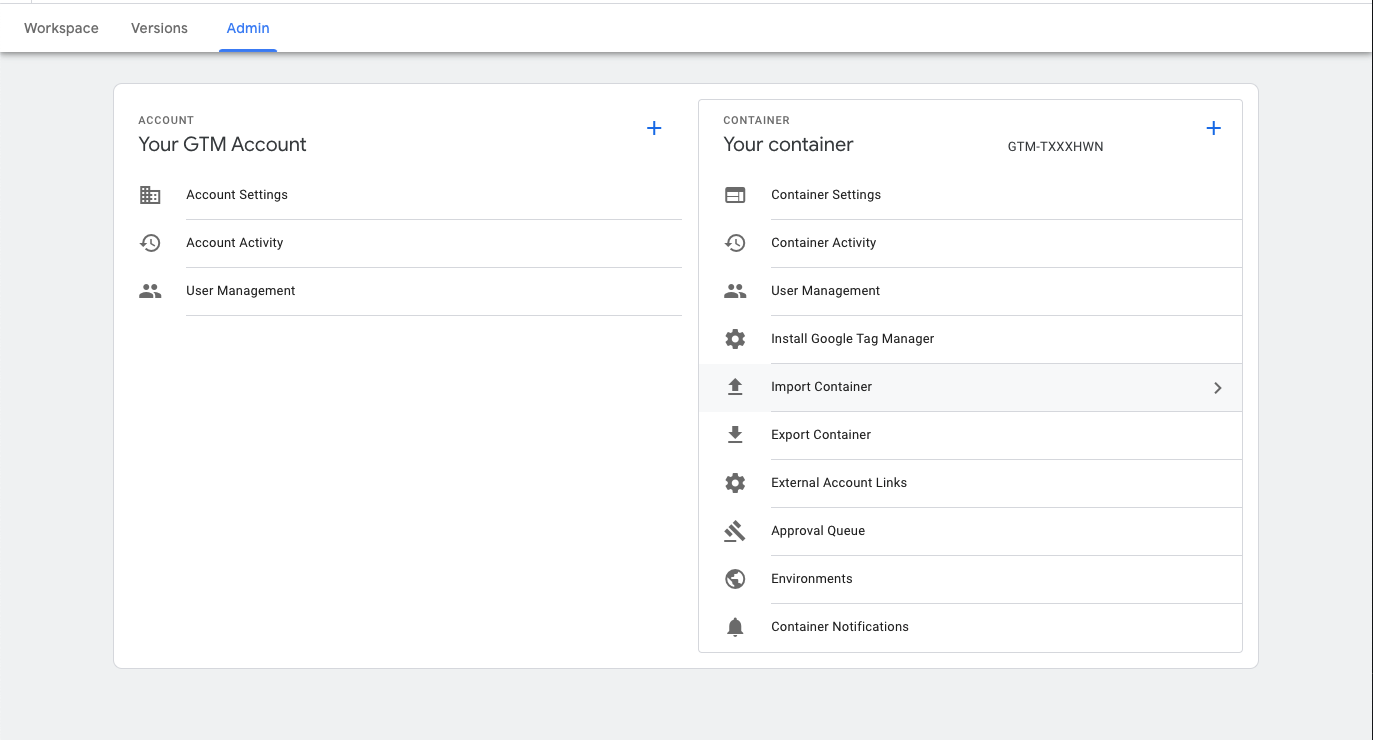
Go to your GTM container, select the Admin tab
Click on Import Container
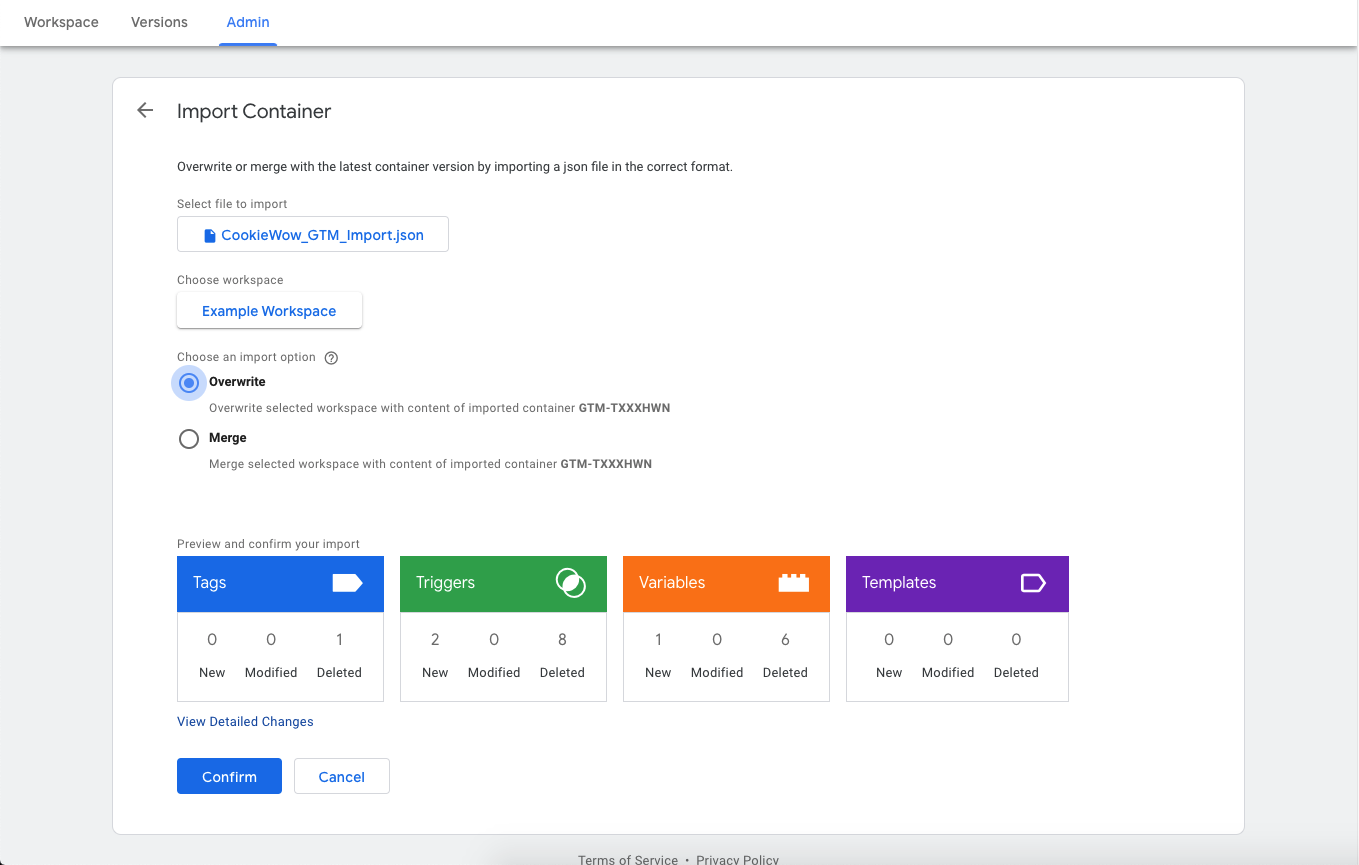
Browse and upload the downloaded JSON file
Choose Merge → then Overwrite conflicting tags, triggers, and variables
Click Confirm
Related articles
See allHow to add script to Shopify
1. Add Script to All Pages (Theme Code)Use this method if you're embedding JS across the whole store (e.g., Google Analytics, custom even...
How to Install the Cookie Banner for Existing Users
How to Install the Cookie Banner for Existing UsersGo to the dashboard at https://app.cookiewow.com/projects and select the domain where ...
How to Install a Cookie Banner for New Users
How to Install a Cookie Banner for New UsersGo to www.cookiewow.com and sign in or register an account .After logging in, you will be red...
Need more help?
Get in touch and we'll help solve it